
Short Codes are great, except that they are not always very user friendly, especially for those users that are not very familiar with programming, because, let’s face, short codes look like code.
This plugin will provide a short code that can be used to insert a selection of CSS 3 buttons, but unlike most short code plugins, this comes with a nice tinyMCE button to insert / configure your short code.
The available buttons are:
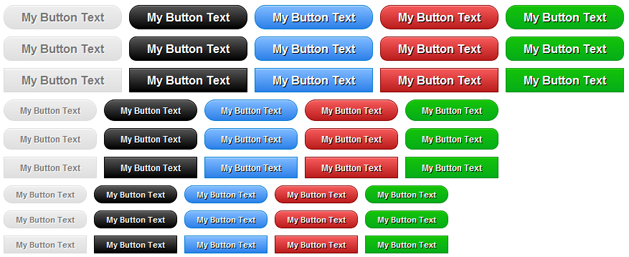
And the interface for inserting buttons looks like this:
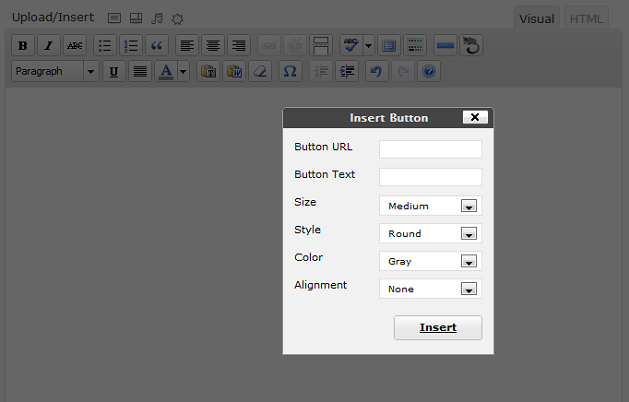
Features
- 5 Button Colors
- 3 Button Sizes
- 3 Button Styles
- TinyMCE button with Modal Popup to insert short codes easily
The short code attributes are:
color=
- gray
- blue
- red
- green
- black
size=
- small
- medium
- large
style=
- less_round
- round
- square
align=
- left
- right
- none
url=clickable url
text=button text
A complete short code may look like this:
[button size=medium style=round color=blue align=left url=http://google.com]button text[/button] |
Note, this plugin is more of an example of how to setup a modal window for your short code attributes than anything super functional, but it does still provide a couple of nice looking buttons.
There is a very in depth tutorial on how to write this plugin available at Pro Blog Design.
Change Log
1.0.1 - Made button non clickable if URL field left blankDownload
Hi, great plugin, just wondered if it’s possible to add a QuickTag button for the HTML editor to open the modal window?
It’s possible for sure, though I’ve never investigated how to do it. If I come across it, I will write up a tutorial on it.
useful plugin thanks for sharing 🙂
Hi Pippin,
Thanks for this, nice an simple and easy to use…
It works fine if I manually enter the shortcode, but the popup dialog appears, but the Insert link does not work (and it is text, not a button like in your picture above!
Cheers Dave
ps Do you have a suggested tab-page plugin ?
Just a follow up – I found another problem!
If I use the following shortcode it works fine:
[button size=small style=round color=gray align=right url=http://example.com]Full details…[/button]
But if I add a page after the url like this:
[button size=small style=round color=gray align=right url=http://example.com/some-page/]Full details…[/button]
It is broken ! small button appears, with not text and the “Full Details…[/button]” appears as text, outside of the button !
TIA, Dave
Dave, wrap the url in quotes, like this:
[button size=small style=round color=gray align=right url="http://example.com"]Full details…[/button]
Have you followed the tutorial or are you just trying to use the plugin?
No, sorry, I don’t ever use tabs so haven’t ever tried any plugins.
Thanks Pippin, I’ll try that !
The tutorial looks great, but at this stage just need to get the plugin working…
Cheers, Dave
Pingback: User Friendly Short Codes with TinyMCE | Cyber Web Designs
I tried the plugin and the script files are not getting loaded with the modal window. Can you tell me what the issue is
Do you have WordPress installed in a sub directory?
Hi Pippin,
I download your plugin and installed in my plugins folder. My question is- How i insert this buttons in post?
thanks.
Do you see the button added to the toolbar? You will have to be in the visual editor mode.
It doesn’t work for me too.
There’s a button in TinyMCE, when I click it the plugin’s window pops up and this is it.
There are no styles and “Insert” button does literally nothing.
Here’s how it looks like: http://i.imgur.com/LGuUf.png
I’m just a beginner, but I believe the problem lies within button_popup.php file, lines 8-11.
“../../” should be replaced with something like “WORDPRESS_DIRECTORY”, the same goes for stylesheet’s URL, am I right? 🙂
You are both right and wrong. The ../../ represent the directory path TO the WordPress directory, though it is probably incorrect for your install. Do you have WordPress installed in a sub directory?
Nope and nope. I’ve been trying on my localhost (http://localhost/wordpress) and my blog, and the same thing happens. No subdirectories in both cases. The latest WordPress version. I know I should change “../../” to “../../../” or “../../../../..” etc. in case of subdirectory.
I believe there’s a problem with the plugin since even link to stylesheet doesn’t work (out of the box).
Does it really work for you?
Yes, it really does work for me, but remember, this plugin is just meant as a sample. It has not really been built as a complete, ready-to-use plugin. It was built for a tutorial that shows how to write a plugin like this: http://www.problogdesign.com/wordpress/user-friendly-short-codes-with-tinymce/
What needs to happen with this plugin (and I did not do it because this was meant as an example) is the path to the WordPress directory needs to be determined automatically, not hard coded.
Sorry if that sounded harsh, I’m not an English native 🙂 This plugin rocks, I’ve been digging around TinyMCE tweaking for a pretty long time and you’re a life saver 🙂 So folks, if this doesn’t work for you just edit your button_popup.php scripts and stylesheets sources. By the way, any hints how to do that? I believe it will require at least require_once(../wp-load.php) and that’s never good? 🙂
Yes, you need to load WordPress, which can be done by including wp-load.php. It’s not a good idea, but sometimes it is the best method. Though I’m sure there is a much better way to do it; it’s just a matter of sitting back down and figuring out the correct path calculation.
thank you
I will soon install this plugin on my blog
Pingback: Gonzo – Clean, Responsive WP Magazine | Buzzingart
Pingback: Gonzo – Clean, Responsive WP Magazine | WPPOT
Hi Pippin, thank you SO much for this. I’ve used it as a basis for several plugins and it has always worked flawlessly. Since WP version 3.5 though I’ve noticed something annoying.
If you select some text first, then click the button to do what you want to do, all works well as expected. The problem comes when you select an entire paragraph, click the button, make your choices and click insert, it sorta crashes. Nothing happens, TinyMCE quits and you can’t switch between visual and text editor. All things Javascript quits until you refresh the page. That’s on Firefox. On Chrome, it adds the shortcode but at the top of the editor before all other content, not enclosing the selected text as it should.
On Firefox, I get the error “WrongDocumentError: Node cannot be used in a document other than the one in which it is created” My javascript skills are weak but it sounds like something to do with the dialog box being another document/page? Any thoughts?
Hmm, I’ve never seen that error. Does it definitely not happen prior to 3.5?
Yup. I installed a fresh copy of 3.4 to test – because I was sure we’d never seen this when building the plugin. I also tried it on your copy, downloaded it from here. Same results.
Going back to the older comments, I did try removing the mceRemoveNode line. That immediately took care of the problem. I liked the idea of trying to clear other nodes first so that it doesn’t interfere with the new code/button we’ll be adding using the plugin, I had to make it functional.
Just thought I’d report this in case anyone has issues or if you have some new ideas on this. Thank you so very much for this – again 🙂
Pingback: Gonzo – Clean, Responsive WP Magazine
Thanks for the plugin Pippin and write up, it came in handy for adding my own shortcode with tinyMCE. The problem I ran into was how tinyMCE formats shortcodes within the editor as just plain text when in visual mode but would be nice to have some examples of how to render those differently.
I checked out how some of the core files are setup to handle the gallery shortcode and looks like there is a bit of JS required to make that work properly. In my case, I am using images with captions and buttons on top of that and it’s not as pretty as how the [caption] is rendered, but certainly worth the effort.
hello how to use your plugin with the media upload of wordpress?
This plugin does not work for version 3.8.1. The TinyMCE editor disappears all together.
I’m sorry, this tutorial is highly out of date and should probably not be relied upon.
Hi Pippin –
Very Nice article and I developed my first shortcode plugin following this article.
Can we use wordpress colorPicker to give the users the liberty to choose color for the button instead of predefined colors?
Thanks –
Yep, check out the WP Colorpicker: http://make.wordpress.org/core/2012/11/30/new-color-picker-in-wp-3-5/
It’s in reality a great and helpful piece of information. I am satisfied that you shared this helpful info with us.
Please keep us informed like this. Thanks for sharing.