
This entry is part 1 of 3 in the WordPress Rewrite API Series
- WordPress Rewrite API – Part 1
- WordPress Rewrite API – Part 2
- WordPress Rewrite API – Part 3
The Rewrite API for WordPress is one of the most overlooked features, yet it provides some unparalleled functionality that drastically improves user experience. This tutorial aims to help you understand how the WordPress URL Rewrite engine works and the different uses of this API.
Why use the Rewrite API? An Introduction to Smart Permalinks
That should be the first question. If you have installed previously and worked with WordPress on an Apache server, you have probably used the Rewrite API even though you didn’t have to deal with it directly.
By default, when WordPress is installed, all blog posts and pages URLs are written in this format
- http://example.com/index.php?p=1
- http://example.com/index.php?p=5&category=7&product=15
This is the URL for the first blog post on your freshly installed blog. This is the default way WordPress handles URLs and it works pretty much without any problems. There are a few issues with this format, though.
- It’s barely readable. For the average Internet user, it looks cryptographic.
- It’s not SEO-friendly.
- Hardly memorable, and sometimes the URL is quite long for sharing.
Enough reasons to improve our URL format. Here is the right way of doing it:
- http://example.com/first-blog-post
- http://example.com/computers/laptops/hp
This format is a lot better. It’s more readable, SEO friendly, and short. If you don’t know about URL rewriting, it’s fair to ask how this can work. The path for the computers/laptops/hp does not actually exist on the server. This is why we call it URL rewriting; when the URL doesn’t exist as a physical path, we redirect it to another location but without changing the URL in the address bar. But how the URL is being rewritten in WordPress?
The .htaccess file
If you have setup WordPress on an Apache server with the mod_rewrite module, it’ll work out of the box for you. Check the .htaccess file on the WordPress install root directory and open it. You should find this.
< IfModule mod_rewrite.c >
RewriteEngine On
RewriteBase /
RewriteRule ^index\.php$ - [L]
RewriteCond %{REQUEST_FILENAME} !-f
RewriteCond %{REQUEST_FILENAME} !-d
RewriteRule . /index.php [L]
< /IfModule >
Looks terrible, right? It’s not actually hard to understand. The file will apply a simple rule. It’ll redirect any URL request to index.php, but only if two conditions are valid: When the requested file name is either invalid or doesn’t exist. The conditions will prevent the redirection of valid URL, like an image URL.
For example, http://example.com/my-blog-post will be redirected to http://example.com/index.php; whereas http://example.com/image.png will still give the actual image file. It’s worth mentioning again that this is not a true redirect. The address bar will still display the the smart link. Wikipedia page has a concise article about URL rewriting.
WordPress permalinks settings
Enabling URL rewriting for WordPress is pretty straightforward, assuming you’d setup the redirection correctly (it’s done for you on Apache, just make sure you have the mod_rewrite module installed).
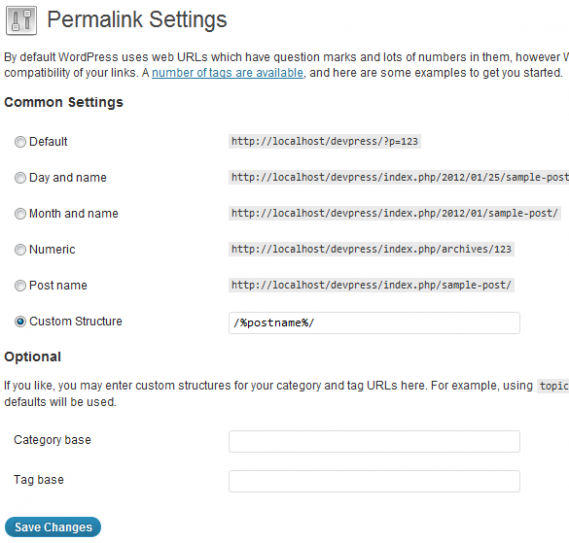
The Settings > Permalinks page is where you change the settings for URLs. I’m using a custom structure which renders URLs as http://example.com/post_name
This is good so far, but pretty limited. What if you want to shorten a blog post URL to make it even easier for sharing? The real blog post URL is http://example.com/2012_free_wordpress_plugins and you want to make it http://example.com/freemium to make sharing and remembering the URL easier.
The settings panel is limited, but WordPress is not. The rewrite API is open, and you can play with it and customize it. First, I’ll explain how the rewrite API actually works, and then I’ll show off an example. Don’t jump the rewrite API basics; it’s necessary to expand your knowledge beyond the trivial example.
How the Rewrite API works?
If you have tried messing up with the rewrite API before this tutorial, you might think it’s a complicated and sophisticated mechanism that WordPress runs. It’s not. It’s actually pretty simple.
- You request a URL. (like http://example.com/blog-post)
- If the resource exists (like an image or a font), the resource is returned.
- If the resource doesn’t exist, the request is redirected to index.php.
- WordPress displays the page accordingly.
It’s that simple. Now you might think that if WordPress displayed the page correctly, it has some schema that defines every URL and the end point or the results to display. It certainly doesn’t guess which page it will be.
Where WordPress hides this schema?
You are certainly curious to see how this schema looks. Okay, I have put down this bit of code. It’s a small WordPress plug-in that will print the schema object (from now on, we’ll be calling it $wp_rewrite). Create a new file, put this bit of code in it, save it in your plugins directory and load your WordPress blog (any page)
1 2 3 4 5 6 7 8 9 10 11 12 | <?php /* Plugin Name: URL Rewrite Description: Testing the WordPress Rewrite API Author: Abid Omar */ add_action('template_redirect', 'ao_dump_rewrite'); function ao_dump_rewrite() { global $wp_rewrite; var_dump($wp_rewrite); } ?> |
The $wp_rewrite object
Depending on your WordPress blog configuration (and what plug-ins, custom taxonomies and other things you setup there), your $wp_rewrite object will vary in size. But if you look carefully (and you have x_debug which will beautify this bunch of text), the object structure is the following:
WP_Rewrite Object (
	public 'permalink_structure' => string '/%postname%/' (length=12)
	public 'use_trailing_slashes' => boolean true
	public 'author_base' => string 'author' (length=6)...
	[rules] = > Array (
		[category/(.+?)/?$] = > index.php?category_name=$matches[1]
		[tag/([^/]+)/page/?([0-9]{1,})/?$] = > index.php?tag=$matches[1] & paged=$matches[2]
		[tag/([^/]+)/?$] = > index.php?tag=$matches[1]
		[(.+?)/trackback/?$] = > index.php?pagename=$matches[1] & tb=1
		...
	)
	[rewritecode] = > Array ()
	...
	)
That was, certainly, a small part of my $wp_rewrite object. I wanted to emphasize on this snippet the rules array. This is actually the real schema. It’s like a map. It links every URL structure to, well, another URL structure. Do you remember what our URLs looked like before changing them from the permalinks panel?
- http://example.com/index.php?p=1
That’s actually how WordPress loads every page: by reading the URL parameters. Now that we changed our URL structure to something smarter like:
- http://example.com/blog_post
It looks like the old format was removed and WordPress is using a new one. It’s actually not true. WordPress is always using the same old-fashioned structure, but now it has a map between the smart URLs and the old URLs. It uses the map to link between them.
So for http://example.com/blog_post WordPress will actually call http://example.com/index.php?p=1 and will use the $wp_rewrite object to figure out the destination URL. Let’s take a look at how one rewrite rule looks.
'page/?([0-9]{1,})/?$' => string 'index.php?&paged=$matches[1]' (length=28)
The array key is our smart URL or how it should look like. It is obvious here that it’s a regular expression. The matched pattern is ‘page/{{some_digit}}’, and the end point is ‘index.php?&paged={{some_digit}}’.
This means that WordPress will match any http://example.com/page/2 (or any other number instead of 2) and redirects it to http://example.com/index.php?&paged=2
Shortening a blog post URL
Now we are going to put this knowledge into some real life stuff. The application is pretty simple and straightforward. We are going to shorten a long blog post URL to a tiny one. One may wonders why go this route since we can simply do it in the WordPress edit blog post page. Well, there are a couple of reasons for that.
First, this is aimed to teach how to work with the Rewrite API and to start with something simple. Second, this can be applied to pretty much any URL in WordPress, not just a blog post URL.
So let’s start. First, create a blog post with the name “2012 Free WordPress Plugins“. If you have the permalink structure set to %postname%, your URL will look something like this: http://example.com/2012-free-wordpress-plugins/
Not bad, but you are looking to share this on viral networking sites like Twitter. You don’t want your URL to be too long because these sites put restrictions on how much characters you can use. You want it to be http://example.com/freemium
Do you still remember the rules array in the $wp_rewrite object? That one magical map that WordPress uses to relay between smart URLs and classic URLs. If we hack this schema, we can probably get WordPress to redirect our http://example.com/freemium to the desired blog post. Fine. How to start then?
- Define your target. The target is the array key. It’s the Smart URL format. We said earlier that it’s a regular expression format. Regex are easy to use but don’t worry we are not going to use them since our pattern is easy. Our pattern is ‘freemium’. That’s what we want to match.
- Define your destination. Your destination is the blog post. But that destination should be written in the old classic URL format. That is ‘index.php?p=post_number’. To find the post number, click the “Get Shortlink” button when editing your post. If you don’t find that button, revert to the old permalink style and you’ll find the post number.
That’s it. Now, let’s edit the $wp_rewrite object. Remember our old plug-in? Well, replace the PHP code with the following
1 2 3 4 5 6 7 8 9 10 11 12 13 | <?php /* Plugin Name: URL Rewrite Description: Testing the WordPress Rewrite API Author: Abid Omar */ add_action( 'init', 'ao_add_rewrite_rule'); function ao_add_rewrite_rule() { add_rewrite_rule( 'freemium', 'index.php?&p=15', 'top'); flush_rewrite_rules(); } ?> |
Who said it is hard? You may wonder about a couple things
- The add_rewrite_rule() function will add a new rule to the $wp_rewrite object.
- The flush_rewrite_rules() function will order WordPress to rebuild the $wp_rewrite object. This is required since we changed our object. It’s a bad practice, however, to call this function everytime the page is loaded since it’s an unnecessary overhead. Place this function on the activation and deactivation actions of your plug-in to make it execute only once. I have used the init hook only for demonstrative purposes.
You can use the first snippet of code to print your $wp_rewrite object. You’ will find your newly added rule in the rules array.
Moving forward
This was an introduction to the rewrite API. In this tutorial, I wanted to show the ABC of URL rewriting in WordPress. It’s worth mentioning that this is just a small bit of it. It helps you grasp the basics of fundamentals. In the next tutorial, we are going to delve deeper on how WordPress actually does the URL redirect and make more practical examples with it.
While you can pass anon functions… it’s not exactly best practice. In saving what some call defining an “unnecessary” function, you take away the ability for someone else to remove that action.
See this for clarification: http://codex.wordpress.org/Function_Reference/add_action#Take_Arguments
I hope you consider changing the code examples before others read and unknowingly pickup this bad practice without understanding the consequences.
Yep, you’re completely right, Ryan. I’ve updated Abid’s code with non-anonymous functions.
Good catch. I wasn’t aware of it, however, it’s giving me a clue on how to hook functions that can’t get removed thereafter.
Why would you want a function that can’t get removed afterwards?
No, I was thinking about hooking a function that can’t get removed by someone else. However, probably the remove_action hook will remove all hooks even if it’s anonymous.
is it possible to remove the custom taxonomy base using rewrite rules or will it break WP?
for example:
http://example.com/food-types/healthy/ to http://example.com/healthy/
Yes, that is possible. See this Stack Exchange thread: http://wordpress.stackexchange.com/questions/6342/remove-custom-taxonomy-base
Thank you for sharing this insight…
I’m wondering if it is possible to use this API technique to automatically shorten URLs based on a shortened version of our website?
For example, let’s say we have the following post:
http://www.wesellcandles.com/2012/03/04/my-really-long-post-title-is-too-long/
But we also registered a short version of our domain, something like: candl.es
We don’t want the short domain to be a public URL shortening service, we only need it to create shorter versions of our own main domain.
So, in this scenario we will simply append the post ID of our main site. In the case of above let’s say the post ID is 15, then the short version will simply be candl.es/15
Is it possible to use the API to do something like this?
That is definitely possible! Abid’s simple example is almost everything you need, in fact. You could, of course, expand it to include a “Get Short Link” option in the post editor (similar to the default one) so that you have an easy way to get the exact URL.
though it’s possible, I don’t think it’s the best thing to do. Loading the whole WordPress base and making a database query is very expensive for a URL redirect. I’d suggest that you go with a pure PHP solution. It’ll be faster and cheaper.
Thanks guys. I agree, it does seem to be possibly but probably not the best solution. We have a Bit.ly Pro account which is set up to use our own short domain.
I see there are a few plugins which can create a shortened URL for each post, including one by the esteemed Yoast. The added benefit of this approach is we can get access to Bit.ly’s stats.
Hi,
Its posibble?
mydomain.com/greeat-long-url
to rewrite
mydomain.com/global/greeat-long-url
and also
mydomain.com/parentpage/subpage
to rewrite
mydomain.com/global/subpage
Means i want to short large url string to “global” and after that the acutual post permalink show.
I am using wordpress 🙂
Need help.
When someone goes to the URL mydomain.com/global/subpage or mydomain.com/global/greeat-long-url, do you want them redirected to the actual URL (so they see the new URL in their browser bar), or do you want them to still see the URL with /global/ in it?