
This entry is part 8 of 9 in the Integrating Stripe.com with WordPress Series
- Stripe Integration Part 1 – Building the Settings and a Simple Payment Form
- Stripe Integration Part 2 – Recurring Payments
- Stripe Integration Part 3 – Variable Prices and Enhanced Plan Handling
- Stripe Integration Part 4 – Multiple Recurring Payment Options
- Stripe Integration Part 5 – Accepting Discount Codes
- Stripe Integration Part 6 – Payment Receipts
- Stripe Integration Part 7 – Creating and Storing Customers
- Stripe Integration Part 8 – Working with Invoices
- Stripe Integration Part 9 – The Stripe Button
The Stripe invoice system allows us to easily add charges to our existing customers subscriptions, such as one time sign up fees, extra monthly charges for new features, or anything else. Just like every other feature in the Stripe API, it’s extremely simple to use, and in this part of the Stripe Integration tutorial series we are going to look at using the invoice system to add a one time fee to customer signups.
Stripe describes the Invoice object like this:
Invoices are statements of what a customer owes for a particular billing period, including subscriptions, invoice items, and any automatic proration adjustments if necessary.
Once an invoice is created, payment is automatically attempted. Note that the payment, while automatic, does not happen exactly at the time of invoice creation. If you have configured webhooks, the invoice will wait until one hour after the last webhook is successfully sent (or the last webhook times out after failing).
Any customer credit on the account is applied before determining how much is due for that invoice (the amount that will be actually charged). If the amount due for the invoice is less than 50 cents (the minimum for a charge), we add the amount to the customer’s running account balance to be added to the next invoice. If this amount is negative, it will act as a credit to offset the next invoice. Note that the customer account balance does not include unpaid invoices; it only includes balances that need to be taken into account when calculating the amount due for the next invoice.
We are going to add two new options to our Stripe Settings options page, one to enable the one time fee and one to define the amount of the one time fee. The result will look like this:
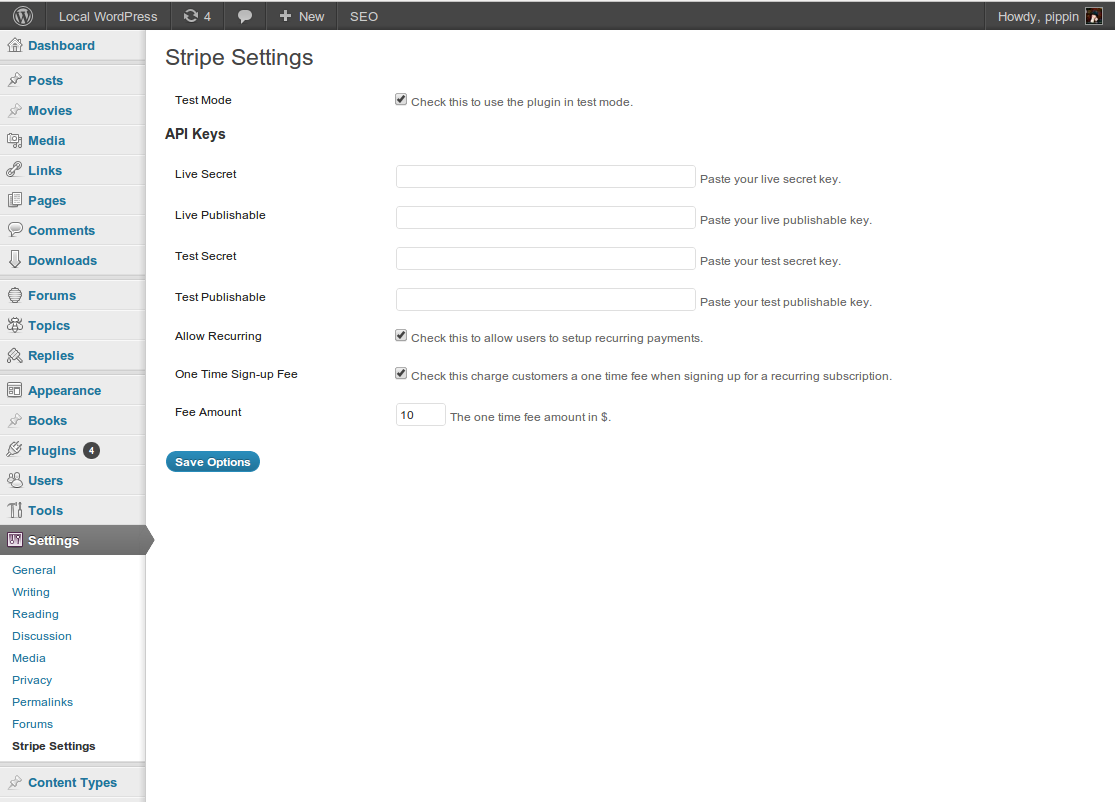
To add our new options, we need to open includes/settings.php and add our new options to the second table. The options (one checkbox and one small text input) look like this:
1 2 3 4 5 6 7 8 9 10 11 12 13 14 15 16 17 18 | <tr valign="top"> <th scope="row" valign="top"> <?php _e('One Time Sign-up Fee', 'pippin_stripe'); ?> </th> <td> <input id="stripe_settings[one_time_fee]" name="stripe_settings[one_time_fee]" type="checkbox" value="1" <?php checked(1, $stripe_options['one_time_fee']); ?> /> <label class="description" for="stripe_settings[one_time_fee]"><?php _e('Check this charge customers a one time fee when signing up for a recurring subscription.', 'pippin_stripe'); ?></label> </td> </tr> <tr valign="top"> <th scope="row" valign="top"> <?php _e('Fee Amount', 'pippin_stripe'); ?> </th> <td> <input id="stripe_settings[fee_amount]" name="stripe_settings[fee_amount]" class="small-text" type="text" value="<?php echo isset( $stripe_options['fee_amount'] ) ? $stripe_options['fee_amount'] : ''; ?>"/> <label class="description" for="stripe_settings[fee_amount]"><?php _e('The one time fee amount in $.', 'pippin_stripe'); ?></label> </td> </tr> |
If you’re not familiar with how these options work, please go back to the first part of this tutorial series.
Our final updated settings.php is now this:
1 2 3 4 5 6 7 8 9 10 11 12 13 14 15 16 17 18 19 20 21 22 23 24 25 26 27 28 29 30 31 32 33 34 35 36 37 38 39 40 41 42 43 44 45 46 47 48 49 50 51 52 53 54 55 56 57 58 59 60 61 62 63 64 65 66 67 68 69 70 71 72 73 74 75 76 77 78 79 80 81 82 83 84 85 86 87 88 89 90 91 92 93 94 95 96 97 98 99 100 101 102 103 104 105 106 107 108 109 110 111 112 113 114 115 116 117 | <?php function pippin_stripe_settings_setup() { add_options_page('Stripe Settings', 'Stripe Settings', 'manage_options', 'stripe-settings', 'pippin_stripe_render_options_page'); } add_action('admin_menu', 'pippin_stripe_settings_setup'); function pippin_stripe_render_options_page() { global $stripe_options; ?> <div class="wrap"> <h2><?php _e('Stripe Settings', 'pippin_stripe'); ?></h2> <form method="post" action="options.php"> <?php settings_fields('stripe_settings_group'); ?> <table class="form-table"> <tbody> <tr valign="top"> <th scope="row" valign="top"> <?php _e('Test Mode', 'pippin_stripe'); ?> </th> <td> <input id="stripe_settings[test_mode]" name="stripe_settings[test_mode]" type="checkbox" value="1" <?php checked(1, $stripe_options['test_mode']); ?> /> <label class="description" for="stripe_settings[test_mode]"><?php _e('Check this to use the plugin in test mode.', 'pippin_stripe'); ?></label> </td> </tr> </tbody> </table> <h3 class="title"><?php _e('API Keys', 'pippin_stripe'); ?></h3> <table class="form-table"> <tbody> <tr valign="top"> <th scope="row" valign="top"> <?php _e('Live Secret', 'pippin_stripe'); ?> </th> <td> <input id="stripe_settings[live_secret_key]" name="stripe_settings[live_secret_key]" type="text" class="regular-text" value="<?php echo $stripe_options['live_secret_key']; ?>"/> <label class="description" for="stripe_settings[live_secret_key]"><?php _e('Paste your live secret key.', 'pippin_stripe'); ?></label> </td> </tr> <tr valign="top"> <th scope="row" valign="top"> <?php _e('Live Publishable', 'pippin_stripe'); ?> </th> <td> <input id="stripe_settings[live_publishable_key]" name="stripe_settings[live_publishable_key]" type="text" class="regular-text" value="<?php echo $stripe_options['live_publishable_key']; ?>"/> <label class="description" for="stripe_settings[live_publishable_key]"><?php _e('Paste your live publishable key.', 'pippin_stripe'); ?></label> </td> </tr> <tr valign="top"> <th scope="row" valign="top"> <?php _e('Test Secret', 'pippin_stripe'); ?> </th> <td> <input id="stripe_settings[test_secret_key]" name="stripe_settings[test_secret_key]" type="text" class="regular-text" value="<?php echo $stripe_options['test_secret_key']; ?>"/> <label class="description" for="stripe_settings[test_secret_key]"><?php _e('Paste your test secret key.', 'pippin_stripe'); ?></label> </td> </tr> <tr valign="top"> <th scope="row" valign="top"> <?php _e('Test Publishable', 'pippin_stripe'); ?> </th> <td> <input id="stripe_settings[test_publishable_key]" name="stripe_settings[test_publishable_key]" class="regular-text" type="text" value="<?php echo $stripe_options['test_publishable_key']; ?>"/> <label class="description" for="stripe_settings[test_publishable_key]"><?php _e('Paste your test publishable key.', 'pippin_stripe'); ?></label> </td> </tr> </tbody> </table> <table class="form-table"> <tbody> <tr valign="top"> <th scope="row" valign="top"> <?php _e('Allow Recurring', 'pippin_stripe'); ?> </th> <td> <input id="stripe_settings[recurring]" name="stripe_settings[recurring]" type="checkbox" value="1" <?php checked(1, $stripe_options['recurring']); ?> /> <label class="description" for="stripe_settings[recurring]"><?php _e('Check this to allow users to setup recurring payments.', 'pippin_stripe'); ?></label> </td> </tr> <tr valign="top"> <th scope="row" valign="top"> <?php _e('One Time Sign-up Fee', 'pippin_stripe'); ?> </th> <td> <input id="stripe_settings[one_time_fee]" name="stripe_settings[one_time_fee]" type="checkbox" value="1" <?php checked(1, $stripe_options['one_time_fee']); ?> /> <label class="description" for="stripe_settings[one_time_fee]"><?php _e('Check this charge customers a one time fee when signing up for a recurring subscription.', 'pippin_stripe'); ?></label> </td> </tr> <tr valign="top"> <th scope="row" valign="top"> <?php _e('Fee Amount', 'pippin_stripe'); ?> </th> <td> <input id="stripe_settings[fee_amount]" name="stripe_settings[fee_amount]" class="small-text" type="text" value="<?php echo isset( $stripe_options['fee_amount'] ) ? $stripe_options['fee_amount'] : ''; ?>"/> <label class="description" for="stripe_settings[fee_amount]"><?php _e('The one time fee amount in $.', 'pippin_stripe'); ?></label> </td> </tr> </tbody> </table> <p class="submit"> <input type="submit" class="button-primary" value="<?php _e('Save Options', 'mfwp_domain'); ?>" /> </p> </form> <?php } function pippin_stripe_register_settings() { // creates our settings in the options table register_setting('stripe_settings_group', 'stripe_settings'); } add_action('admin_init', 'pippin_stripe_register_settings'); |
Now we get to process the payment. The rest of the work we do will be in includes/process-payment.php, so go ahead and open that now.
At least for this tutorial, we’re going to only charge the one-time signup fee if the customer is creating a recurring subscription, so one time payments will not receive a fee. This means that we will be updating the code that currently looks like this:
1 2 3 4 5 6 7 8 9 10 11 12 13 14 15 16 17 18 19 20 21 22 23 24 25 26 27 28 29 30 31 32 33 34 35 36 37 38 39 40 41 42 43 44 45 46 47 48 49 50 51 52 53 54 | if(isset($_POST['recurring']) && $_POST['recurring'] == 'yes') { // process a recurring payment $plan_id = strip_tags(trim($_POST['plan_id'])); try { if( is_user_logged_in() ) $customer_id = get_user_meta( get_current_user_id(), '_stripe_customer_id', true ); else $customer_id = false; if( $customer_id ) { // retrieve our customer from Stripe $cu = Stripe_Customer::retrieve( $customer_id ); // update the customer's card info (in case it has changed ) $cu->card = $token; // update a customer's subscription $cu->updateSubscription(array( 'plan' => $plan_id ) ); // save everything $cu->save(); } else { // create a brand new customer $customer = Stripe_Customer::create(array( 'card' => $token, 'plan' => $plan_id, 'email' => strip_tags(trim($_POST['email'])), 'coupon' => $using_discount ? trim($_POST['discount']) : null ) ); if( is_user_logged_in () ) { // store the new customer ID in the meta table update_user_meta( get_current_user_id(), '_stripe_customer_id', $customer->id ); } } // redirect on successful recurring payment setup $redirect = add_query_arg('payment', 'paid', $_POST['redirect']); } catch (Exception $e) { // redirect on failure $redirect = add_query_arg('payment', 'failed', $_POST['redirect']); } } |
Let’s look quickly at how the Stripe Invoice object works.
A new invoice is created with the Stripe_InvoiceItem::create() method, and looks like this:
1 2 3 4 5 6 | $invoice = Stripe_InvoiceItem::create( array( 'customer' => 'cus_0n4qu13vJJqFda', // the customer to apply the fee to 'amount' => '1000, // amount in cents, $10 'currency' => 'usd', // currency to use 'description' => 'One-time setup fee' // our fee description ) ); |
Seems pretty straight forward right? It is 🙂
What we want to do now is add the Stripe Invoice create function into our payment processing function, though only if the option we created earlier is checked, so we will first do this:
1 2 3 | if( isset( $stripe_options['one_time_fee'] ) ) { // add the one time fee } |
This simply checks to see if our checkbox is checked. Once we’ve confirmed that we are supposed to be adding a fee, we need to calculate the amount of the fee. Remember, amounts in Stripe are always based on the amount in cents, not dollars. In our settings page, we asked for the amount in dollars, so we need to convert that to cents, which we can do easily:
1 2 3 4 5 | if( isset( $stripe_options['one_time_fee'] ) ) { $amount = $stripe_options['fee_amount'] * 100; // create invoice here } |
We now have the amount, so all we need to do is create the invoice.
Remember that in the previous part we created the Stripe customer and stored the ID of the customer in a variable called $customer_id; we will use this to apply our invoice to the same customer.
When we create an invoice to be paid immediately, there are three things we do:
- Create the invoice item, which determines the amount to be paid and the currency.
- Create the invoice itself. This will automatically pull in the invoice item we create in 1.
- Pay the newly created invoice. If we don’t trigger the pay() function, the invoice will be paid the next time the customer’s subscription is billed.
1 2 3 4 5 6 7 8 9 10 11 12 13 14 15 16 17 | if( isset( $stripe_options['one_time_fee'] ) ) { $amount = $stripe_options['fee_amount'] * 100; $invoice_item = Stripe_InvoiceItem::create( array( 'customer' => $customer_id, // the customer to apply the fee to 'amount' => $amount, // amount in cents 'currency' => 'usd', 'description' => 'One-time setup fee' // our fee description ) ); $invoice = Stripe_Invoice::create( array( 'customer' => $customer_id, // the customer to apply the fee to ) ); $invoice->pay(); } |
When a customer signs up now, they will have an invoice item created and paid for them, which you can see in the Dashboard:
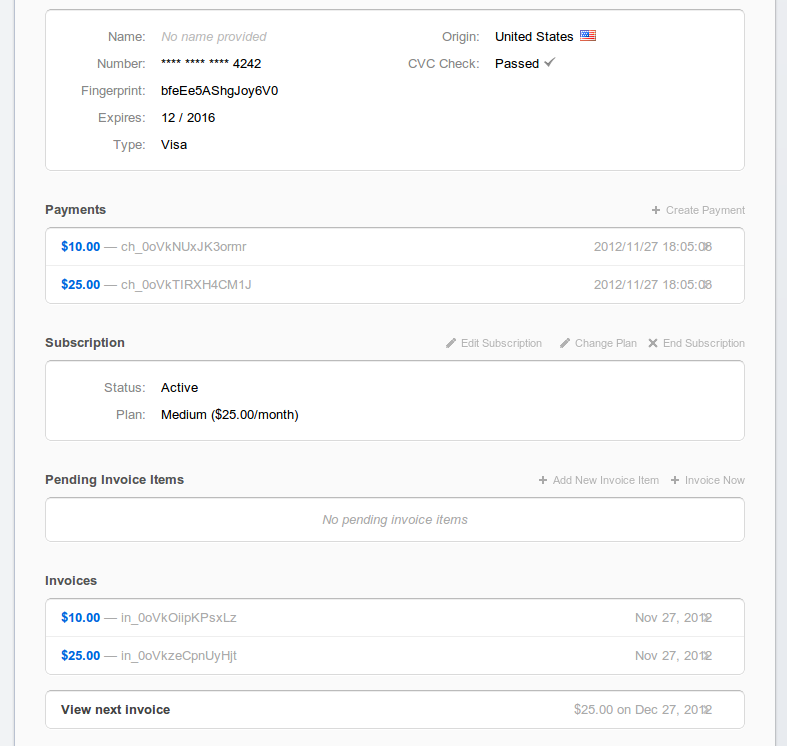
And that’s it! We have now successfully added a one-time fee to our subscription signup process. The complete code for process-payment.php is below:
1 2 3 4 5 6 7 8 9 10 11 12 13 14 15 16 17 18 19 20 21 22 23 24 25 26 27 28 29 30 31 32 33 34 35 36 37 38 39 40 41 42 43 44 45 46 47 48 49 50 51 52 53 54 55 56 57 58 59 60 61 62 63 64 65 66 67 68 69 70 71 72 73 74 75 76 77 78 79 80 81 82 83 84 85 86 87 88 89 90 91 92 93 94 95 96 97 98 99 100 101 102 103 104 105 106 107 108 109 110 111 112 113 114 115 116 117 118 119 120 121 122 123 124 125 126 127 128 129 130 131 132 133 134 135 136 137 138 139 140 141 142 143 144 145 146 147 148 149 150 151 152 153 154 155 156 157 158 159 160 161 162 163 164 165 166 167 168 169 170 171 172 173 174 175 176 177 178 179 180 181 182 | <?php function pippin_stripe_process_payment() { if(isset($_POST['action']) && $_POST['action'] == 'stripe' && wp_verify_nonce($_POST['stripe_nonce'], 'stripe-nonce')) { global $stripe_options; // load the stripe libraries if( !class_exists( 'Stripe' ) ) require_once(STRIPE_BASE_DIR . '/lib/Stripe.php'); $amount = base64_decode($_POST['amount']) * 100; // retrieve the token generated by stripe.js $token = $_POST['stripeToken']; // check if we are using test mode if(isset($stripe_options['test_mode']) && $stripe_options['test_mode']) { $secret_key = $stripe_options['test_secret_key']; } else { $secret_key = $stripe_options['live_secret_key']; } Stripe::setApiKey($secret_key); $using_discount = false; // check for a discount code and make sure it is valid if present if(isset($_POST['discount']) && strlen(trim($_POST['discount'])) > 0) { $using_discount = true; // we have a discount code, now check that it is valid try { $coupon = Stripe_Coupon::retrieve( trim( $_POST['discount'] ) ); // if we got here, the coupon is valid } catch (Exception $e) { // an exception was caught, so the code is invalid wp_die(__('The coupon code you entered is invalid. Please click back and enter a valid code, or leave it blank for no discount.', 'pippin'), 'Error'); } } if(isset($_POST['recurring']) && $_POST['recurring'] == 'yes') { // process a recurring payment $plan_id = strip_tags(trim($_POST['plan_id'])); try { if( is_user_logged_in() ) $customer_id = get_user_meta( get_current_user_id(), '_stripe_customer_id', true ); else $customer_id = false; if( $customer_id ) { // retrieve our customer from Stripe $cu = Stripe_Customer::retrieve( $customer_id ); // update the customer's card info (in case it has changed ) $cu->card = $token; // update a customer's subscription $cu->updateSubscription(array( 'plan' => $plan_id ) ); // save everything $cu->save(); } else { // create a brand new customer $customer = Stripe_Customer::create(array( 'card' => $token, 'plan' => $plan_id, 'email' => strip_tags(trim($_POST['email'])), 'coupon' => $using_discount ? trim($_POST['discount']) : null ) ); if( is_user_logged_in () ) { // store the new customer ID in the meta table update_user_meta( get_current_user_id(), '_stripe_customer_id', $customer->id ); } $customer_id = $customer->id; } if( isset( $stripe_options['one_time_fee'] ) ) { $amount = $stripe_options['fee_amount'] * 100; $invoice_item = Stripe_InvoiceItem::create( array( 'customer' => $customer_id, // the customer to apply the fee to 'amount' => $amount, // amount in cents 'currency' => 'usd', 'description' => 'One-time setup fee' // our fee description ) ); $invoice = Stripe_Invoice::create( array( 'customer' => $customer_id, // the customer to apply the fee to ) ); $invoice->pay(); } // redirect on successful recurring payment setup $redirect = add_query_arg('payment', 'paid', $_POST['redirect']); } catch (Exception $e) { // redirect on failure wp_die( $e, 'Error' ); $redirect = add_query_arg('payment', 'failed', $_POST['redirect']); } } else { // process a one-time payment // attempt to charge the customer's card try { if($using_discount !== false) { // calculate the discounted price $amount = $amount - ( $amount * ( $coupon->percent_off / 100 ) ); } if( is_user_logged_in() ) $customer_id = get_user_meta( get_current_user_id(), '_stripe_customer_id', true ); else $customer_id = false; if( !$customer_id ) { // create a new customer if our current user doesn't have one $customer = Stripe_Customer::create(array( 'card' => $token, 'email' => strip_tags(trim($_POST['email'])) ) ); $customer_id = $customer->id; if( is_user_logged_in () ) { update_user_meta( get_current_user_id(), '_stripe_customer_id', $customer_id ); } } if( $customer_id ) { $charge = Stripe_Charge::create(array( 'amount' => $amount, // amount in cents 'currency' => 'usd', 'customer' => $customer_id ) ); } else { // the customer wasn't found or created, throw an error throw new Exception( __( 'A customer could not be created, or no customer was found.', 'pippin' ) ); } // redirect on successful payment $redirect = add_query_arg('payment', 'paid', $_POST['redirect']); } catch (Exception $e) { wp_die($e); // redirect on failed payment $redirect = add_query_arg('payment', 'failed', $_POST['redirect']); } } // redirect back to our previous page with the added query variable wp_redirect($redirect); exit; } } add_action('init', 'pippin_stripe_process_payment'); |
You can download the complete source for the plugin below.
[download id=”50″ format=”1″]
Great as usual, best series I’ve read in a long time.
Great as usual, best series I’ve read in a long time.
Is it the end of it or planning for more?
I’m sure there will be another part 🙂
FYI… You didn’t include the latest Stripe API in your download so
$invoice = Stripe_Invoice::createfails.Whoops! Fixed. Thanks for noticing.
There is not another site that I learn more from. Totally appreciate you sharing these in-depth tutorials.
Terry
Thanks for the kind words, I really appreciate it!
Thanks so much for what you’ve put together here, it’s an amazing resource.
But I’ve run into a problem where everything works, provided I’m not using https, if I switch to https the url for stripe-processing.js goes from
http://property-rejuvenation.com/login/wp-content/plugins/wordpress-stripe-integration/includes/js/stripe-processing.js?ver=3.4.2
to
https://property-rejuvenation.com/login/wp-content/plugins/home/tradmin/domains/property-rejuvenation.com/public_html/login/wp-content/plugins/wordpress-stripe-integration/includes/js/stripe-processing.js?ver=3.4.2
Any thoughts or ideas how or why this is happening?
Figures I thought of a work-around moments after posting, I’ve added this line to my wp-config
define(‘STRIPE_BASE_URL’, ‘https://property-rejuvenation.com/login/wp-content/plugins/wordpress-stripe-integration/’);
And now all is good.
But I don’t recall reading that step in the tutorials, any thoughts why this is occurring, or did I just miss a step somewhere?
Thanks again.
Chuck
Hmm, that is interesting. That constant was defined in one of the early parts of the series, though I’m not sure why https vs http would cause that to happen.
According to https://stripe.com/docs/api?lang=php#create_invoice the method Stripe_Invoice::create() should work. However, on attempting to run this the user gets a fatal error – undefined method.
Fatal error: Call to undefined method Stripe_Invoice::create()
You need to update the Stripe libraries to the latest version.
Thanks Pippin!!
One more query.
How to set the max.time a recurrence can occur?
For example,if i want user to pay installment for 12 Months @ $125/Month.Where to set the recurrence length(here it is 12,since it will run for 12 months) that after each month $125 will deducted from customer account.
any idea???
Hello,
I think I can answer that since I had the same problem.
Stripe doesn’t offer that option, if you want it to stop after 12 months you have to either do it manually and cancel the subscription in Stripe or keep the count of how many times payment went through (using webhooks) and send a cancellation order to Stripe. make sure you set the cancellation order to be “at period end” so it doesn’t stop right at the beginning of the last month but at the end of the month.
Thanks!! at least i got the answer.
Hi Pippin,
Its very good tutorial. Could you please let me know how to set the success page after payment successed?
With Best Regards,
Awie
Set the URL in the wp_redirect() function: wp_redirect($redirect); exit;
Hi Pippin
Thanks for great tutorial, This is the best solid tutorial I’ve ever found with stripe and wordpress integration.
However, I need to add a bit more functionality which is similar to this tutorial but instead of One Time Fee, I’d like the Invoice Item to be included on the recurring payment
Here’s my code, it adds an invoice item on first invoice but not on the next invoice.
$new_customer = Stripe_Customer::create(array(

	'card' => $card,

	'email' => $email,)

	);

Stripe_InvoiceItem::create(array(

	'customer' => $new_customer['id'],

	'amount' => $additiona_charges,

	'currency' => 'gbp',

	'description' => 'Addtional Cities'

));

$new_customer->updateSubscription(array('plan' => $selected_plan, 'prorate' => true));
I have basically additional Custom Charges based on customer selection upon subscription thats way I need to add additional charges on recurring payment.
I hope you could help. Thanks so much
Cheers
Kenn
You want a fee added to each payment that is processed for the subscription?
Spotted a typo there: paied => paid.
Fixed, thanks!
I have this on my html5 bs page:
What i have to put in my page to manage a checkout with a setup fee AND a subscription plan combined?
Looks like your code got stripped out. Could you post it to pastebin.com then share the link?
How do we create a page where the customer can enter an amount that was received from an invoice we sent them. Essentially coming back to my page to pay it? Since the charge isn’t consistent and can vary widely, I cannot find a way to make stripe do this with my site. It seems like it always wants a price from somewhere that is always predetermined.