
A very popular feature of many themes is an Ajaxified contact form, often inserted through a shortcode. So I’m going to show you how to create one from scratch as a plugin that can be dropped into any WordPress theme.
Note: several of the techniques used in this tutorial are out of date and now not considered good practices.
1 – The Plugin File / Folder Structure
As our plugin is going to be really quite simple, we only need one folder and two files.
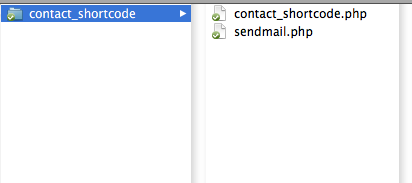
2 – Create the Main Plugin File
First we will put all of the plugin header code into our file. This tells WordPress about our plugin: the plugin name, author name, version number, etc. We are also declaring a global variable that contains the path to the plugin’s root folder, which we will use later.
1 2 3 4 5 6 7 8 9 10 11 | /* Plugin Name: jQuery Contact Shortcode Plugin URI: https://pippinsplugins.com/contact-shortcode/ Description: Adds a shortcode for displaying a jQuery Validated Contact Form Version: 1.0 Author: Pippin Williamson Author URI: http://184.173.226.218/~pippin */ // plugin root folder $cs_base_dir = WP_PLUGIN_URL . '/' . str_replace(basename( __FILE__), "" ,plugin_basename(__FILE__)); |
Next we will write the function that displays our contact forms HTML, and also outputs our jQuery to perform the validation upon submission.
1 2 3 4 5 6 7 8 9 10 11 12 13 14 15 16 17 18 19 20 21 22 23 24 25 26 27 28 29 30 31 32 33 34 35 36 37 38 39 40 41 42 43 44 45 46 47 48 49 50 51 52 53 54 55 56 57 58 59 60 61 62 63 | function pippin_shortcode_contact( $atts, $content = null) { // gives access to the plugin's base directory global $cs_base_dir; extract( shortcode_atts( array( 'email' => get_bloginfo('admin_email') ), $atts ) ); $content .= ' <script type="text/javascript"> var $j = jQuery.noConflict(); $j(window).load(function(){ $j("#contact-form").submit(function() { // validate and process form here var str = $j(this).serialize(); $j.ajax({ type: "POST", url: "' . $cs_base_dir . 'sendmail.php", data: str, success: function(msg){ $j("#note").ajaxComplete(function(event, request, settings) { if(msg == "OK") // Message Sent? Show the Thank You message and hide the form { result = "Your message has been sent. Thank you!"; $j("#fields").hide(); } else { result = msg; } $j(this).html(result); }); } }); return false; }); }); </script>'; // now we put all of the HTML for the form into a PHP string $content .= '<div id="post-a-comment" class="clear">'; $content .= '<div id="fields">'; $content .= '<h4>Send A Message</h4>'; $content .= '<form id="contact-form" action="">'; $content .= '<input name="to_email" type="hidden" id="to_email" value="' . $email . '"/>'; $content .= '<p>'; $content .= '<input name="name" type="text" id="name"/>'; $content .= '<label class="error" for="name">Name *</label>'; $content .= '</p>'; $content .= '<p>'; $content .= '<input name="email" type="text" id="email"/>'; $content .= '<label for="email">E-mail address *</label>'; $content .= '</p>'; $content .= '<p><textarea rows="" cols="" name="message"></textarea></p>'; $content .= '<p><input type="submit" value="Submit" class="button" id="contact-submit" /></p>'; $content .= '</form>'; $content .= '</div><!--end fields-->'; $content .= '<div id="note"></div> <!--notification area used by jQuery/Ajax -->'; $content .= '</div>'; return $content; } |
The code may look more complicated than it really is, but all that I’ve done is put all of the necessary HTML and jQuery code into a single PHP string that is then returned at the end of the function.
I’m not going to go in depth and explain exactly what the code here does; that is for another tutorial.
For the purposes of this tutorial, we are keeping our form simple and only displaying name, email, and message fields. If you wish to extend the plugin with additional fields, it’s really quite simple. Please leave a comment if you need support.
Next what we need to do is add in the hook that will tie our function to a short code, and make the short code available for use.
1 | add_shortcode('contact', 'pippin_shortcode_contact'); |
If you are unfamiliar with how to create a basic short code, check out my quick tip on creating short codes in plugins.
1 | wp_enqueue_script('jquery'); |
That’s it for our main plugin file.
3 – Creating the Send Mail File
We now have to set up another file that will receive the information posted from our contact form, validate it, and perform the final steps, such as sending the email and displaying error / success messages.
First, create a file called sendmail.php and place it in the main plugin folder.
Next, in order to make use of core WordPress functions, we need to include wp-load.php
1 2 3 4 5 6 7 | // allow us to use core wordpress functions // make sure to replace this with the name of the plugin's root folder name $plugin_name = 'contact_shortcode'; $oldURL = dirname(__FILE__); $newURL = str_replace(DIRECTORY_SEPARATOR . 'wp-content' . DIRECTORY_SEPARATOR . 'plugins' . DIRECTORY_SEPARATOR . $plugin_name, '', $oldURL); include($newURL . DIRECTORY_SEPARATOR . 'wp-load.php'); |
Now we are going to write a function that will check the submitted email to make sure it has a valid format.
1 2 3 4 5 6 7 8 9 10 11 12 13 14 15 16 17 18 19 20 21 22 23 24 25 26 27 28 29 30 | function ValidateEmail($email) { /* (Name) Letters, Numbers, Dots, Hyphens and Underscores (@ sign) (Domain) (with possible subdomain(s) ). Contains only letters, numbers, dots and hyphens (up to 255 characters) (. sign) (Extension) Letters only (up to 10 (can be increased in the future) characters) */ $regex = '/([a-z0-9_.-]+)'. # name '@'. # at '([a-z0-9.-]+){2,255}'. # domain & possibly subdomains '.'. # period '([a-z]+){2,10}/i'; # domain extension if($email == '') { return false; } else { $eregi = preg_replace($regex, '', $email); } return empty($eregi) ? true : false; } |
And finally, there is just one more piece of code to write. This next bit will detect the information sent from the contact form and store it into the necessary variables, perform email validation, check for empty fields, and then send the email if everything checks out okay.
1 2 3 4 5 6 7 8 9 10 11 12 13 14 15 16 17 18 19 20 21 22 23 24 25 26 27 28 29 30 31 32 33 34 35 36 37 38 39 40 41 42 43 44 45 46 47 48 49 50 51 52 53 54 55 56 | $post = (!empty($_POST)) ? true : false; if($post) { $name = stripslashes($_POST['name']); $subject = 'Contact Form'; $email = trim($_POST['email']); $to = trim($_POST['to_email']); $message = stripslashes($_POST['message']); $error = ''; // Check name if(!$name) { $error .= 'Please enter your name.<br />'; } // Check email if(!$email) { $error .= 'Please enter an e-mail address.<br />'; } if($email && !ValidateEmail($email)) { $error .= 'Please enter a valid e-mail address.<br />'; } // Check message (length) if(!$message || strlen($message) < 15) { $error .= "Please enter your message. It should have at least 15 characters.<br />"; } if(!$error) // send email { $mail = wp_mail($to, $subject, $message, 'From: '.$name.' <'.$email.'>\r\n' .'Reply-To: '.$email.'\r\n' .'X-Mailer: PHP/' . phpversion()); if($mail) { echo 'OK'; } } else { echo '<div class="notification_error">'.$error.'</div>'; // set up error div for jQuery/Ajax } } |
And that’s it! We can now activate our plugin and display the contact form using:
[contact email="youraddress"] |
The email parameter is optional. If you leave it blank, the admin email will be used instead.
And our final result looks like this!
[contact]
If you have any trouble with this code, please ask in the comments below. You can also download the full plugin below.
Download disabled. This plugin is out of date and does not illustrate best practices.
Enjoy!
Thanks for this detailed tutorial. Will put it to good use.
Thanks for this tutorial and this plugin. But, IMO you should replace your ValidateEmail() function with : filter_var($email, FILTER_VALIDATE_EMAIL) 😉
Why is that? I don’t know anything about filter_var
Pingback: WordPress Community Links: Used to be Flare9 edition | WPCandy
Thanks alot for the great code, though I have one question if you can help?
I wanted to include this in a custom template and instead of having the user activate the plugin is there anyway to hardcode it into the theme so all the user has to do is use the shortcode?
@cgcs – you can simply copy and paste the function and then correct the file paths so that they point to the files in your theme folder.
Hi again, I just wanted to say thanks it worked. This code really came in like a dark horse at a time when I really needed it. I must’ve spent 5 days trying to create a contact form shortcode and nothing worked but this. Beautiful code and many many thanks for posting this tutorial.
@cgcs – you are welcome 🙂
Hi again,
If the PLUGIN_PATH is set to WP_PLUGIN_DIR and the PLUGIN_URL is set to WP_PLUGIN_URL what do I change those to so it reads my template path directories instead? Any help would be highly appreciated.
You can use get_bloginfo(‘template_directory’) or get_bloginfo(‘stylesheet_directory’)
Thanks again pippin. That worked. Although I have been mucking around in WordPress for nearly a year it’s little things like this that always trip me up. I have alot to learn about plugins. Really appreciate the help.
Always glad to help.
Pingback: Post Data with Ajax in WordPress Pugins | Pippin's Plugins
I noticed that the using the shortcode in content, it is always above the other content on the page. Do you know of a way to fix this?
Hmm, it shouldn’t. Look in the plugin code and see if the final line of the short code function is echoing $content, or returning it. It needs to return $content.
First of all, great tutorial. Thank you for taking the time to put it together. I wanted to take a second to advice you of a vulnerability that would be introduced by the use of the code as you have it. When you are setting the “to_email” as a hidden form item, it can be exploited and used to send email from your server to any address. Since I saw that you took good care in sanitizing the rest of the code, I thought I would tell you.
Thank you
Alex Centeno.
Ah yes, good call. Thanks for pointing it out.
Hey Pippin,
I probably shouldn’t be reading tutorials at 2 am after a long week of work, but does the last block of code where wp_mail() resides go inside
pippin_shortcode_contact()?Nevermind. Now that I’ve had some sleep, I see it. 🙂 This works great, thanks!
No problem, glad it’s working for you 🙂
thanks for share this contact from coding
download link not working …
try now.
Thanks for the tutorial!
Download like doesn’t work ;o)
hi thanks a very good tutus posted. this is the best for beginers but one more thing i wana show individual error one error at a time so could u help
What’s the error?
error means like fill your name till he is not filling his name it shud show the same error msg fill the name first instead fill ua name, fill ua email etc…wana show one error msg at a time
and one more thing i wana use the same form on different place based on some condition so how to create conditional shortcode
Hi,
i don’t understand the root directorys you have set up? i have put my files inside the theme directory then into shortcode how would i link to that?
This is created as a plugin, so it goes in wp-content/plugins. Once you’ve put it there, you’ll be able to activate it just like any other plugin.
Hi Pippin,
I have put it in my theme and then into a folder called shorts this is the code i have the form sends but for some reason doesn’t display success message or errors.
function nathan_shortcode_contact( $atts, $content = null) {
extract( shortcode_atts( array(
'email' => get_bloginfo('admin_email')
), $atts ) );
$content .='
var $j = jQuery.noConflict();
$j(window).load(function(){
$j("#contact-form").submit(function() {
// validate and process form here
var str = $j(this).serialize();
$j.ajax({
type: "POST",
url: "' . get_stylesheet_directory_uri() . '/short/sendmail.php",
data: str,
success: function(msg){
$j("#note").ajaxComplete(function(event, request, settings)
{
if(msg == "OK") // Message Sent? Show the Thank You message and hide the form
{
result = "Your message has been sent. Thank you!";
$j("#fields").hide();
}
else
{
result = msg;
}
$j(this).html(result);
});
}
console.log(msg)
});
return false;
});
});
' ;
// now we put all of the HTML for the form into a PHP string
$content .= '';
$content .= '';
$content .= 'Enquire';
$content .= ' ';
$content .= '';
$content .= '';
$content .= '';
$content .= 'Name *';
$content .= '';
$content .= '';
$content .= '';
$content .= 'Phone number *';
$content .= '';
$content .= '';
$content .= '';
$content .= 'Best time to call';
$content .= '
Morning
Afternoon
Anytime
';
$content .= '';
$content .= '';
$content .= 'E-mail address *';
$content .= '';
$content .= '';
$content .= 'Enquiry message *';
$content .= '';
$content .= '';
$content .= '';
$content .= '';
$content .= '';
return $content;
}
add_shortcode('contact', 'nathan_shortcode_contact');
thats my contact-form.php
here is my sendmail.php
<?php
$plugin_name = 'contact_shortcode';
function ValidateEmail($email)
{
	/*
	(Name) Letters, Numbers, Dots, Hyphens and Underscores
	(@ sign)
	(Domain) (with possible subdomain(s) ).
	Contains only letters, numbers, dots and hyphens (up to 255 characters)
	(. sign)
	(Extension) Letters only (up to 10 (can be increased in the future) characters)
	*/

	$regex = '/([a-z0-9_.-]+)'. # name

	'@'. # at

	'([a-z0-9.-]+){2,255}'. # domain & possibly subdomains

	'.'. # period

	'([a-z]+){2,10}/i'; # domain extension

	if($email == '') {
		return false;
	}
	else {
		$eregi = preg_replace($regex, '', $email);
	}

	return empty($eregi) ? true : false;
}
$post = (!empty($_POST)) ? true : false;
if($post)
{
$name = stripslashes($_POST['name']);
$time = stripslashes($_POST['time']);
$phone = stripslashes($_POST['phone']);
$subject = 'Contact Form';
$email = trim($_POST['email']);
$to = trim($_POST['to_email']);
$message = stripslashes($_POST['message']);
$error = '';
// Check name
if(!$name)
{
$error .= 'Please enter your name.';
}
if(!$phone)
{
$error .= 'Please enter a phone number.';
}
if(!$time)
{
$error .= 'Please select a time.';
}
// Check email
if(!$email)
{
$error .= 'Please enter an e-mail address.';
}
if($email && !ValidateEmail($email))
{
$error .= 'Please enter a valid e-mail address.';
}
// Check message (length)
if(!$message || strlen($message) < 15)
{
$error .= "Please enter your message. It should have at least 15 characters.";
}
if(!$error) // send email
{
$contents = "Name: $name \n\nEmail: $email \n\nSubject: $subject \n\nPhone: $phone \n\nTime: $time \n\nMessage:\n $message";
$mail = mail($to, $subject, $contents,
'From: '.$name.' \r\n'
.'Reply-To: '.$email.'\r\n'
.'X-Mailer: PHP/' . phpversion());
if($mail)
{
echo 'OK';
}
}
else
{
echo ''.$error.''; // set up error div for jQuery/Ajax
}
}
?>
http://auto.nathanrobjohn.com/contact-us/ thats the link if you look in console and click submit and open the sendmail.php it shows the errors if nothings been entered but for some reason doesnt display them about the form
Sorry for being slow. Could you post the code to pastebin.com then share the link?
Nice simple tutorial, worked right away so thanks very much
Hi Pipin, the sample plugin download link is broken. There apears an page with the text “Download does not exist!”. Could you fix it please, it would help me a lot!
Hi Pippin!
Are you able to indicate where this code no longer meets best practices? What would we need to do to bring it up to scratch?
Thank you!
The way the ajax is processed is wrong. WordPress has a really slick ajax API that makes processing ajax extremely simple. Here’s are two more up to date tutorials that shows how to process ajax requests:
https://pippinsplugins.com/process-ajax-requests-correctly-in-wordpress-plugins/
https://pippinsplugins.com/using-ajax-your-plugin-wordpress-admin/
This site was… how do you say it? Relevant!!
Finally I have found something which helped me. Cheers!
Finally I have got helpful Post. Thanks for sharing this