

You have probably noticed the Screen Options tab in the top right corner of many WordPress admin pages. This tab brings down a configuration panel that you can generally use to control what elements are displayed on the current amin page. One of the really great things about the Screen Options tab is that which ever settings you select are saved to your user meta options, meaning they remain as are until you personally change them. While not very flexible, you can add your plugin’s own option to the Screen Options tab.
This tutorial is based on one written by Chris Marslender. I’m going to cover pretty much the same things Chris did, but I’m going to go just a little bit further and show you a demonstration of how I’ve used this in my Restrict Content Pro plugin.
The Screen Options APi works very similar to the add_help_tab() API, which I have covered several times before, but is a bit more limited. At this time the documentation on the function is very, very sparse. From exploring the core source, I’ve concluded that the add_screen_option() function does not have the ability to add custom option types, but rather allows you to enable certain predefined option types. For this tutorial, we’re going to look at adding a “per page” option to our plugin. Once complete, I will show you how I implemented this into Restrict Content Pro.
We are going to assume that you have already setup your plugin’s settings page, but if you haven’t, then check out some of these tutorials.
In order to register our screen option, we have to use the add_action(“load-$your-settings-page”, “screen_options_callback”); hook. This action is added just after we register our settings page, so yours might look something like this:
1 2 3 4 5 6 7 8 9 10 | function pippin_sample_settings_menu() { global $pippin_sample_page; // add settings page $pippin_sample_page = add_menu_page(__('Sample Settings', 'pippin'), __('Settings', 'pippin'), 'manage_options', 'sample-settings-slug', 'sample_settings_display_page'); add_action("load-$pippin_sample_page", "pippin_sample_screen_options"); } add_action('admin_menu', 'pippin_sample_settings_menu'); |
We now setup our function that registers the screen option and name it pippin_sample_screen_options. Note that this is the same name as used for the callback in the add_action() above. If it is not exact, it will not work.
1 2 3 4 5 6 7 8 9 10 11 12 13 14 15 16 17 | function pippin_sample_screen_options() { global $pippin_sample_page; $screen = get_current_screen(); // get out of here if we are not on our settings page if(!is_object($screen) || $screen->id != $pippin_sample_page) return; $args = array( 'label' => __('Members per page', 'pippin'), 'default' => 10, 'option' => 'pippin_per_page' ); add_screen_option( 'per_page', $args ); } |
This will result in an option that looks like this:

The add_screen_option() function takes to parameters:
- $options – the option we are adding
- $args – the additional parameters for our option
There are only a few available choices for the first parameter, and I have not been able to find a list of them, so we will stick with “per_page” for now. This “per_page” determines the kind of HTML we are going to output for our screen option, which, in this case, is a small text input.
The $args array allows us to define the label of the input, the default value, and the ID of our option.
Now we need to add another function that will save the value we enter when clicking “Apply”. This is done with a simple filter.
1 2 3 4 | function pippin_set_screen_option($status, $option, $value) { if ( 'pippin_per_page' == $option ) return $value; } add_filter('set-screen-option', 'pippin_set_screen_option', 10, 3); |
The function takes three parameters:
- $status – I’m not sure what this is yet
- $option – the ID of our option, as defined by the ‘option’ key in our $args array above
- $value – the value we have entered in our “per page” input field
Try it out. When you click “Apply”, the page will reload and your option will be saved.
There is just one more thing to do: retrieve the stored option and use it to control the number of items displayed on the page for our plugin’s settings page. This is pretty simple:
1 2 3 4 5 6 7 8 9 10 11 12 13 | // get the current user ID $user = get_current_user_id(); // get the current admin screen $screen = get_current_screen(); // retrieve the "per_page" option $screen_option = $screen->get_option('per_page', 'option'); // retrieve the value of the option stored for the current user $per_page = get_user_meta($user, $screen_option, true); if ( empty ( $per_page) || $per_page < 1 ) { // get the default value if none is set $per_page = $screen->get_option( 'per_page', 'default' ); } // now use $per_page to set the number of items displayed |
This will set the $per_page variable equal to whatever value is stored in your user’s meta option, and you can now use this in your plugin to control how many elements are displayed on the page. In the case of Restrict Content Pro, I’m using this to control the number of members displayed per page on the Member’s admin page.
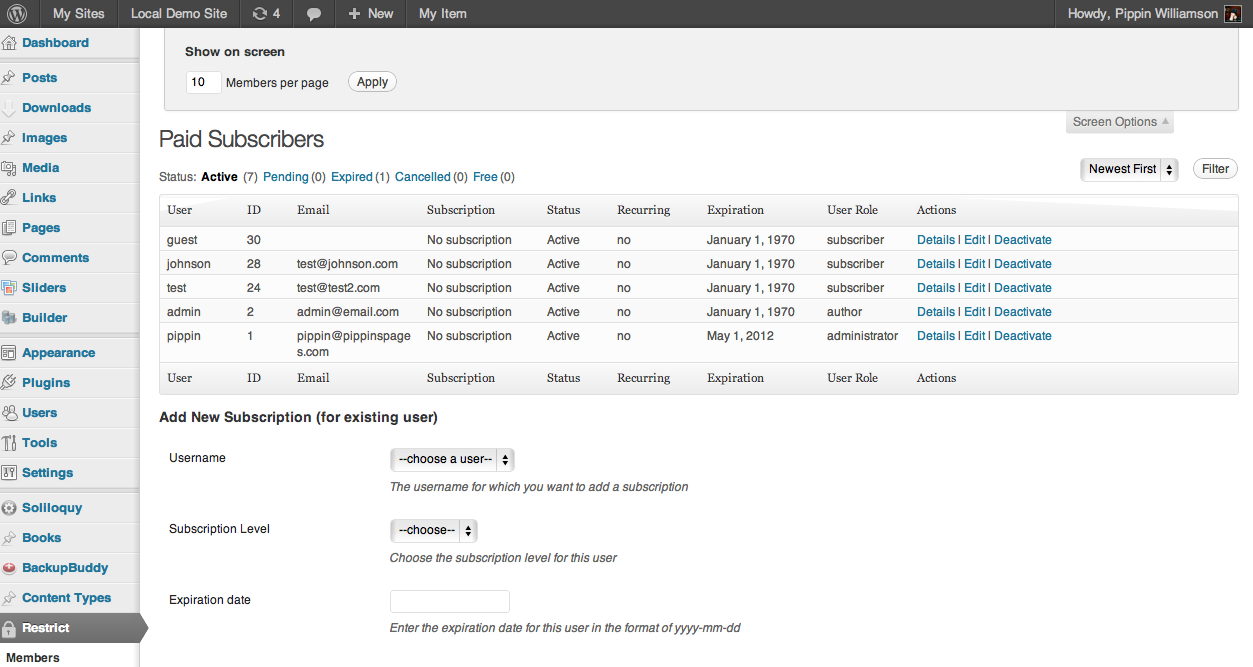
By default, my Member’s page looks like this, with 10 members per page (there are only 7 in the system in this example):
Once the setting has been changed, it looks like this:
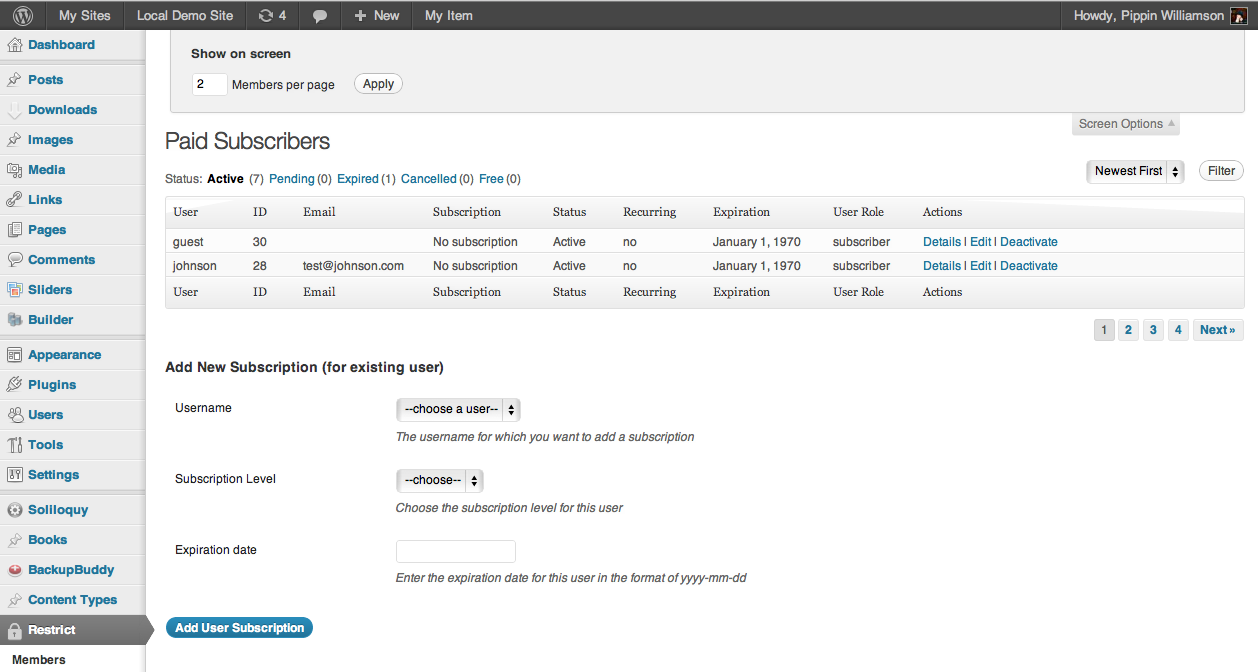
The implementation of the $per_page option will differ with every plugin, but in my case, I pass it as a parameter to the function that displays the registered members, like so:
1 | $members = rcp_get_members($status, $subscription_id, $offset, $per_page, $order); |
The $members variable is then looped through to display the details of each member.
If you have not made use of the screen options API, I’d highly recommend that you check it out.
I can get the options tab to appear and the default 10 is showing, but when I put in another number and apply the screen refreshes the number goes back to the default 10.
I looked at my MYSQL and I see the pippin_per_page row in the user_meta table for the user but there is no value for it. When I manually place a value in the MYSQL then refresh the page the options tab shows the new value in the input field, but when I type in a new value and apply it the field goes back to the default 10 and the MYSQL field is blank again.
Where am I going wrong with saving the value?
Can you show me the code via a pastebin or snippi.com?
http://pastebin.com/Fu8L3a2s
I have been following your plug-in tutorial so I have this split up over several files with some of them in an includes folder. I have changed some of the functions for the paste to be public. The pastebin shows three of those files. Let me know if you need to see more info.
Found the problem 🙂
Your global $test_my_page name is not consistent. First it is $test_my_page, then it is $my_test_page.
You also need to make sure you are adding the screen option for your test page. See the updated version: http://pastebin.com/0k6ezGF6
The global variable was a typo when changing the variable in pastebin to protect the innocent 🙂 (my bad).
I will go through and add the switch() into the code. Thanks for the tip. It was not mentioned in the code above or in Chris Marslender tutorial. The Check below is even different from the pastebin so I’ll have to go thoufh and see what is happening here..
if(!is_object($screen) || $screen->id != $pippin_sample_page)return;
Whoops, I forgot about the check if($screen->id == $page_name).
Where does that go?
if($screen->id == $page_name)In the test_screen_options() function.
Hi Pippin,
Thanks a lot for this wonderful tutorial 🙂
I wanted to ask you that how can i add multiple options in screen options???
Can you guide me in order to achieve this please?
I think there is a limitation in the API. I couldn’t make multiple options work.
Hi Pippin, Thank you for the tutorial.
add_screen_option() is indeed lacking documentation, and the source code is not that well documented either.
I want to add an option to the dashboard screen, that should consist of a multi-select – or if that’s not possible – a group of checkboxes. Each option/checkbox should represent a custom post type.
I’ll be using the options for a plugin that adds the selected custom post types to the Right Now dashboard.
The one thing I can’t work out, is what slug to use for the $option parameter. ‘per_page’ is obviously not the one. I want to add my own ‘custom’ option type, consisting of an input element (multiple select box or group of checkboxes) and store the selected values in an array.
Do you have any suggestions on this, or can you tell me right now, if this is not possible based on your knowledge with the API?
oh, I just found your wrapper script, will try that out right away.
http://w-shadow.com/blog/2010/06/29/adding-stuff-to-wordpress-screen-options/
Nice, let me know how well that works for you.
Hey Pippin,
I have a copy of ecct I bought from code canyon a while back. At first I thought it wasn’t the right choice for me because I’m not a php expert so I have difficulty getting the fields to display properly on the frontend. I ended up spending over $100 on another set of tools that provide a similar function.
But I had trouble with it, after coming back and watching some of your tutorials I realized that ecct is the perfect tool for the job, it has just the right amount of functionality and I definitely recommend it and the level of documentation and support you provide.
Quick question, when you add your action, what is the purpose of the ‘pippin’ ?
$pippin_sample_page = add_menu_page(__('Sample Settings', 'pippin')
A theme I have does that everywhere in their functions file and I was curious to the meaning of it…..
ex. ( ‘sample settings’, “johnson_theme’)
Thanks so much.
Lowell
The “pippin” part is the text domain and is used for internationalization (making it possible to translate the text). Have a read through my tutorial on the subject for a more thorough explanation.
You are awesome! Thanks for saving me a ton of time.
Hi
These script manifestation screen option of new post.
class get_screent_option {
function __construct() {
add_action( ‘in_admin_header’, array( $this, ‘in_admin_header’ ) );
}
function in_admin_header() {
global $wp_meta_boxes;
echo “”;
print_r($wp_meta_boxes[ ‘post’ ]);
echo “”;
}
new get_screent_option();
@pippin
I think there’s an error in your tutorial…
Shouldn’t this:
function pippin_set_screen_option($status, $option, $value) {
	if ( 'pippin_per_page' == $option ) return $value;
}
add_filter('set-screen-option', 'pippin_set_screen_option', 10, 3);
Be this:
function pippin_set_screen_option($status, $option, $value) {

	if ( 'pippin_per_page' == $option ) return $value;

	return $status; // or return false;

}

add_filter('set-screen-option', 'pippin_set_screen_option', 10, 3);
I just spent all evening pounding my head against the desk trying to figure out why my screen options were not saving … here, the actual cause was another plugin, which I forgot I activated earlier in the day on my dev site, I normally do not have random plugins activated while coding. Anyway, the author of the author plugin wasn’t returning $status causing the filter to return NULL. And because there filter ran after mine, the value was getting wiped. Putting the “return $status” in the other plugin fixed things right up. I checked out a couple other tuts on this subject and they’re returning $status … so … or is there something else I’m missing.
Yes!
@pippin in regards to Stevens post. Should Restrict Content Pro have the `return $status;` added to the the function. It seems to be effecting my ability to save the per_page value for my add-on to that plug-in.
Also, is there a way to add in the the column checkboxes to hide/show the columns in the table?
@pippin, thanks for this. Retrieving screen options though can be done without first using get_current_screen(). One can simply use:
$per_page = get_user_meta(get_current_user_id(), ‘pippin_per_page’, true);
I’ve written something on this approach here: http://kakoma.ug/code/2014/10/adding-screen-options-wordpress-plugin
Hi this is exactly what I am looking for but i dont know how to use it. can anyone explain? you give the code but where do you put it?
Have you written a plugin already that you want to add screen option to?
Regarding my previous post (not yet moderated), I decided return false or return $status is correct. Best to not validate unknown data by passing back $value unchanged.
Instead, I’m not even adding the filter unless I see $_GET[‘page’] is mine. That is the way to prevent plugin conflicts there.
Ughh, moderation. Let’s just try this.
Search “custom-list-table-screen-options-example” at Github for my sample plugin describing various issues, insluding preventing conflicts with other plugins.
How to get all the columns with check-boxes to allow hide and show of user desired columns?
I have successfully implemented the per page functionality but couldn’t find any good content to implement hide and show of columns.
Thanks Pippin for this tutorial. I’ve just met the same issue with the admin table list class, and found the solution with the code to set screen option on this page.